Vehicle
Overview
The "Vehicle data" step, shown only when the entry is by vehicle. This assumes the company is a logistics center (only then does the visitor choose the visit/entry type) and that they chose to enter by vehicle. At companies that are not logistics centers, every visit is on foot and this step never appears. Here the visitor enters the license plate of the vehicle they will enter with, and can add more than one plate.
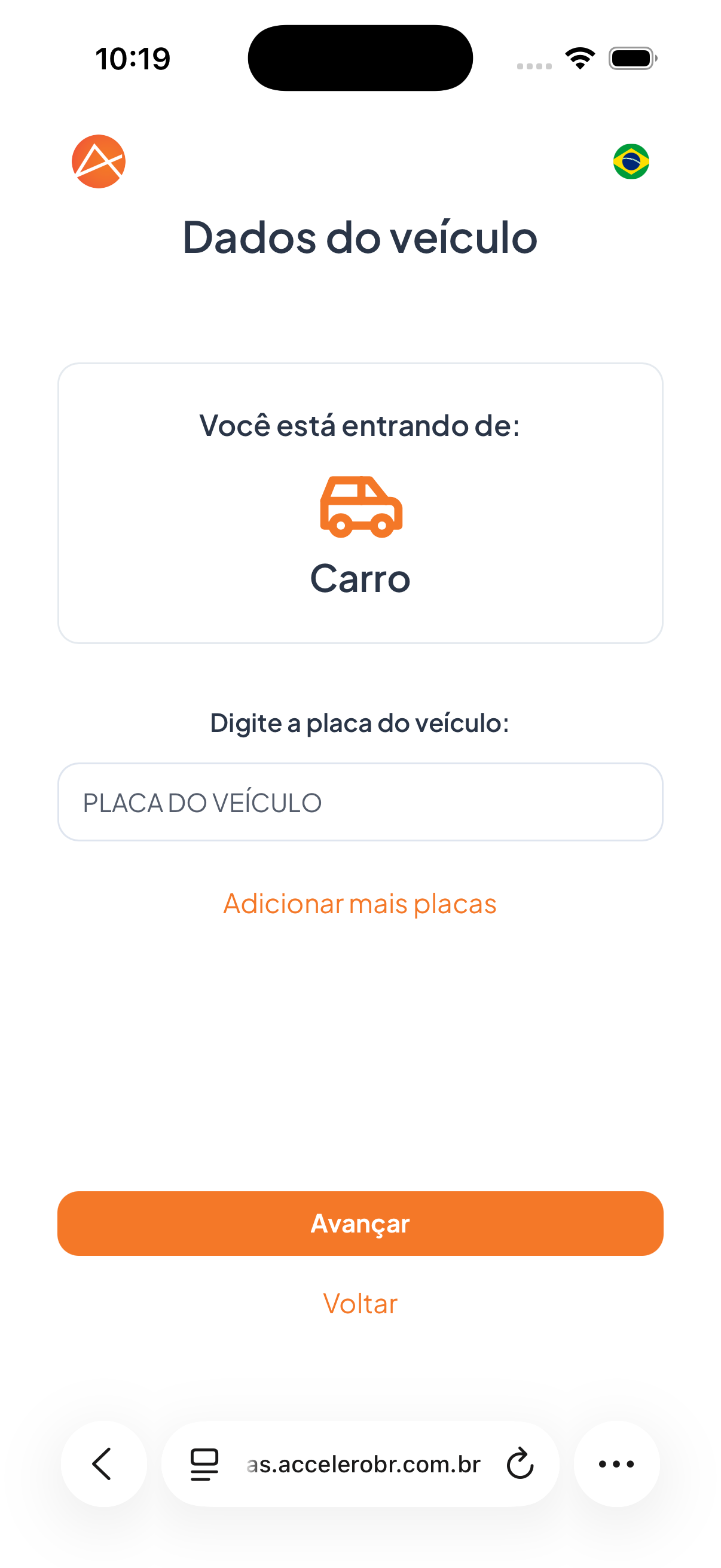
What you see
- Title "Vehicle data".
- Block "You are entering by:" with the selected vehicle type (e.g., Car) and its icon.
- Text "Enter the vehicle license plate:" with a plate field (placeholder "VEHICLE LICENSE PLATE").
- Link Add more plates.
- Button Next and link Back.
Fields
- Vehicle license plate — license plate of the entering vehicle.
- Additional plates — optional, via Add more plates.
Step by step
- Check the vehicle type shown in "You are entering by:".
- Enter the vehicle license plate.
- If needed, tap Add more plates to include other plates.
- Tap Next.
States
- Applicable: only appears at a logistics center company when the selected entry is by vehicle (Motorcycle, Car, Van, or Truck).
- Pedestrian / non-logistics-center company: this step is skipped.
For you
This step only appears if you are entering with a vehicle. Enter the license plate correctly; if there is more than one vehicle, use Add more plates.